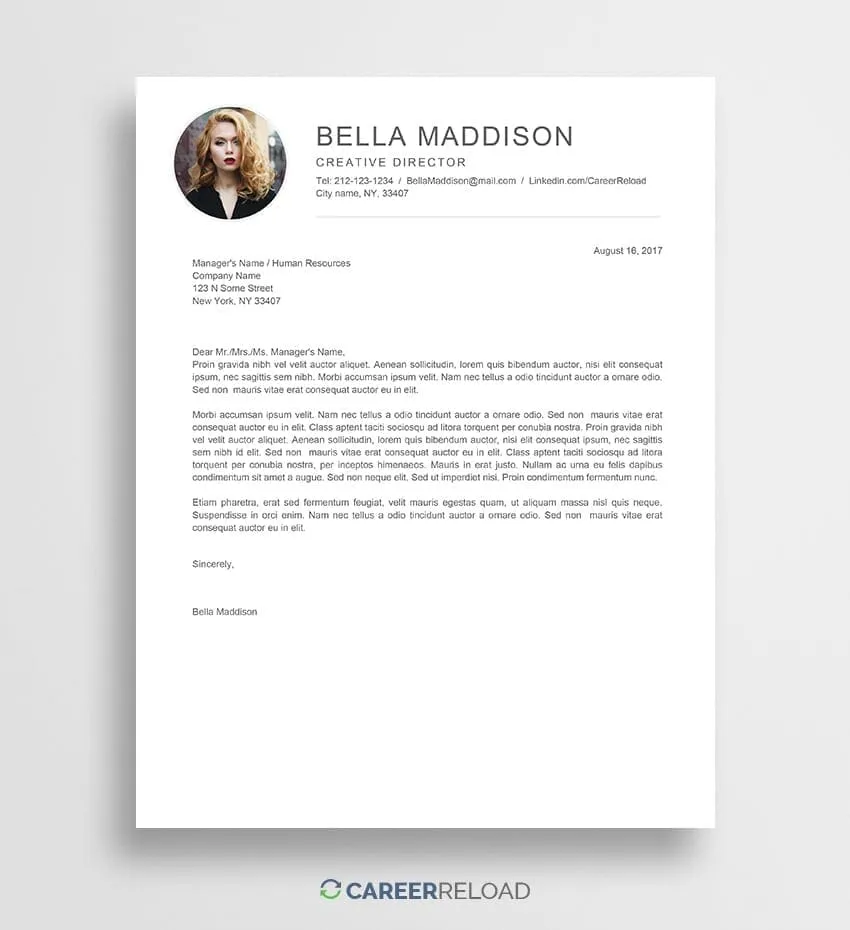
The Importance of a Cover Letter Signature
In the digital age, where electronic communication reigns supreme, the seemingly small act of signing a cover letter can still make a significant impact. While not always a strict requirement, adding your signature to a cover letter serves multiple purposes, contributing to its professional appeal and reinforcing your commitment to the application. Understanding the ‘why’ behind this practice is just as important as the ‘how.’ By signing your cover letter, you’re not just adding your name; you’re making a statement about your attention to detail and respect for the application process. It is a visible symbol of your personal endorsement and a subtle cue of professionalism, which can distinguish your application in a competitive job market. Moreover, a signature can add a personal touch, making your cover letter more memorable.
Why Sign Your Cover Letter
Professionalism and Credibility

A signature immediately elevates the tone of your cover letter. It transforms a digital document into a more personal, official communication. This is especially true if you use a handwritten signature that has been scanned. The presence of a signature signifies that you’ve taken the time and effort to give your cover letter a polished look. This attention to detail is often perceived positively by potential employers, reflecting that you care about the quality of your work. A signed cover letter also subtly suggests that you are serious about the application and are willing to go the extra mile, demonstrating a proactive attitude that many employers value. This commitment to professionalism can be a differentiating factor, particularly in fields that prioritize precision and attention to detail.
Legal and Formal Requirements
While not typically a legal requirement in most modern job applications, in some instances, a signed cover letter might be considered a formality, particularly for roles in industries like law, finance, or government where formal protocols still hold significant importance. In certain cases, especially when dealing with contracts or official agreements, a signature can serve as a legal confirmation of your agreement or understanding. Always check the specific requirements or guidelines given by the employer. If a job posting specifically asks for a signed cover letter, then make sure to include one. Even when not explicitly stated, signing your cover letter can showcase your awareness of and compliance with professional norms and industry standards. It’s about showing you understand and respect the established rules, a quality any employer seeks.
Methods for Signing a Cover Letter in Word
Microsoft Word provides several methods for adding a signature to your cover letter, each with its own advantages. The best method for you will depend on your personal preferences, the available technology, and the level of formality required. From scanned handwritten signatures to digital signatures created within the document, understanding each technique allows you to choose the most effective and suitable option. Whether you are looking for the most personal approach or prefer the convenience of a digital signature, Word’s versatility provides multiple ways to achieve a polished, professional-looking cover letter that is ready to impress.
Adding a Handwritten Signature

Scanning and Inserting Your Signature
One of the most personal ways to sign your cover letter is by using a scanned image of your handwritten signature. This method gives your document an authentic look. Start by signing a clean piece of white paper using a black pen. Then, scan the signed document at a high resolution to create a digital image. Save this image, ideally as a .PNG file, to preserve transparency. In Word, click where you want the signature to go. Then, go to the ‘Insert’ tab, choose ‘Pictures,’ and select your saved image. You can then resize and position the signature as needed. This method is an excellent choice for those who want to add a personal touch and maintain a sense of formality in their cover letter.
Using the ‘Insert Signature Line’ Feature
Microsoft Word offers a convenient ‘Insert Signature Line’ feature designed specifically for this purpose. Navigate to the ‘Insert’ tab in Word and select ‘Signature Line.’ In the ‘Signature Setup’ dialog box, you can input your name, job title, and other details. When the recipient opens the document, they will see a line with an ‘X’ where your signature will go, and they can either print, sign, and scan it back, or use a digital signature tool to sign it. This feature is great for creating an area on the document where you can add your signature. Although it doesn’t add an actual signature image itself, it clearly marks where you intend the signature to go.
Creating a Digital Signature

A digital signature is a secure electronic signature that is encrypted to verify the authenticity of your document. Although creating a digital signature is a bit more involved than the other methods, it offers the highest level of security and credibility. You’ll first need a digital certificate. These are often purchased from trusted certificate authorities. Once you have a certificate, you can insert a digital signature into your Word document by going to the ‘Insert’ tab, clicking ‘Signature Line,’ and then, when prompted, inserting your digital signature. If the recipient also has software that supports digital signatures, they can verify the authenticity of your document. This method is preferred for legal and professional situations.
Using a Signature Image
If a digital signature seems complicated or you do not have a certificate, you can insert a scanned image of your signature, similar to the handwritten method. You can create this image by signing your name on a piece of paper, scanning it, and saving it as a .PNG or .JPG file. In Word, go to the ‘Insert’ tab, click ‘Pictures,’ and choose your signature image. Resize it as needed. Unlike using a digital signature, this method doesn’t verify the document’s authenticity, but it adds a visual element that mimics a handwritten signature.
Adding a Signature Using a Text Box
You can also add a signature by creating a text box in Word. Go to the ‘Insert’ tab and select ‘Text Box.’ Draw a box where your signature should be, then type your name. You can format the text to resemble a signature by using a cursive font. Adjust the font size, color, and style to fit your document’s overall design. This is a quick option, but be careful as it is less formal than a scanned signature and could look less professional.
Formatting Your Signature for Professionalism

The way you format your signature can greatly influence the overall look of your cover letter. From its placement to the font you choose, every element contributes to the professionalism of your document. Taking the time to format your signature properly shows your attention to detail. Whether you are using a handwritten signature, a digital signature, or simply typing your name, the following formatting tips will help ensure your cover letter leaves a positive impression.
Signature Placement Best Practices
Typically, your signature is placed at the end of the cover letter, below your closing, and above your typed name. This positioning is standard and widely accepted. Center aligning your signature can provide a balanced look, especially if you have a longer closing statement. However, left alignment is also acceptable. Ensure that your signature does not overlap any text or margins and is positioned in a way that is visually appealing and easy to read. If using a scanned signature, ensure it fits neatly within the space and doesn’t distort the document’s layout.
Choosing the Right Font
When typing your name for a signature, the choice of font is important. Cursive fonts, like ‘Brush Script MT’ or ‘Lucida Handwriting,’ can mimic a handwritten signature and give your document a more personal feel. If using a cursive font, keep it clear and easy to read. Avoid fonts that are overly stylized, which could make your signature hard to decipher. For a more formal look, you may choose a clean and classic font like ‘Times New Roman’ or ‘Arial.’ Regardless of the font, keep the style consistent with the rest of your cover letter to maintain a professional appearance.
Sizing and Appearance

The size and appearance of your signature also have an important impact. When inserting a scanned signature or signature image, adjust its size to fit proportionately within your cover letter. The goal is to make it large enough to be clearly visible but not so large that it overwhelms the other elements on the page. A good rule of thumb is to keep the signature within the size of your typed name. Ensure the image is clear and sharp. If you type your name, use a font size that complements the rest of your document. Ensure a consistent look. The font size should be appropriate for readability, neither too small to be overlooked nor too large to appear disproportionate.
Troubleshooting Common Signature Issues
Despite the simplicity of adding a signature in Word, you may encounter a few common issues. These problems can range from incorrect image display to incompatibility problems and legibility challenges. Knowing how to troubleshoot these issues will save you time and frustration, and will ensure your cover letter is polished and professional. Whether you are struggling with formatting problems or image quality, the following solutions will help resolve common obstacles and make your cover letter looks professional.
Signature Not Appearing Correctly
If your signature image appears distorted or out of place, the first step is to review its properties in Word. Click the image and use the format options in the ‘Picture Tools’ tab to adjust its size, alignment, and wrapping style. Make sure the image’s aspect ratio is maintained to prevent distortion. Check your image file. If you’ve inserted a .JPG file, it may have a white background that doesn’t match your document. Convert the image to a .PNG with a transparent background. In most cases, these checks will correct the display of the signature, ensuring it appears as intended in your document.
File Compatibility Problems

When submitting your cover letter online, consider file compatibility. Always save your final document as a .PDF. This format preserves your formatting, including your signature, regardless of the recipient’s software or operating system. If you need to share your document in Word format (.DOCX), make sure you embed the signature properly so it appears in the file for everyone who opens it. While converting to a .PDF usually eliminates formatting issues, it’s always good to double-check the appearance of the signature before sending it. This will help ensure that your cover letter reaches its destination looking professional.
Ensuring Your Signature is Legible
Legibility is vital for a signature. If you’re using a handwritten signature image, make sure it is scanned at a high enough resolution (300 DPI or higher) to ensure clarity. This is particularly important if your signature is intricate or includes small details. When typing your name, select a clear font that is easy to read. Avoid excessively ornate or complex fonts that could make it hard to understand your name. Finally, be sure that the signature’s size is appropriate. Make sure it is large enough to be easily read without being too large to fit the page’s layout properly. The goal is for your signature to look professional.
Finalizing and Saving Your Signed Cover Letter
Once you’ve added your signature, it’s essential to review your entire cover letter before finalizing and saving it. Check for any spelling or grammatical errors. Verify that your signature is correctly placed and that the formatting is consistent. Make sure your contact information is current and accurate. After you’ve reviewed all the details, save the document as a .PDF file. This preserves your formatting, ensuring that your signature and cover letter appear exactly as you intend. Saving as a .PDF also prevents changes from others. By following these steps, you can confidently submit a signed cover letter that highlights your professionalism and attention to detail.